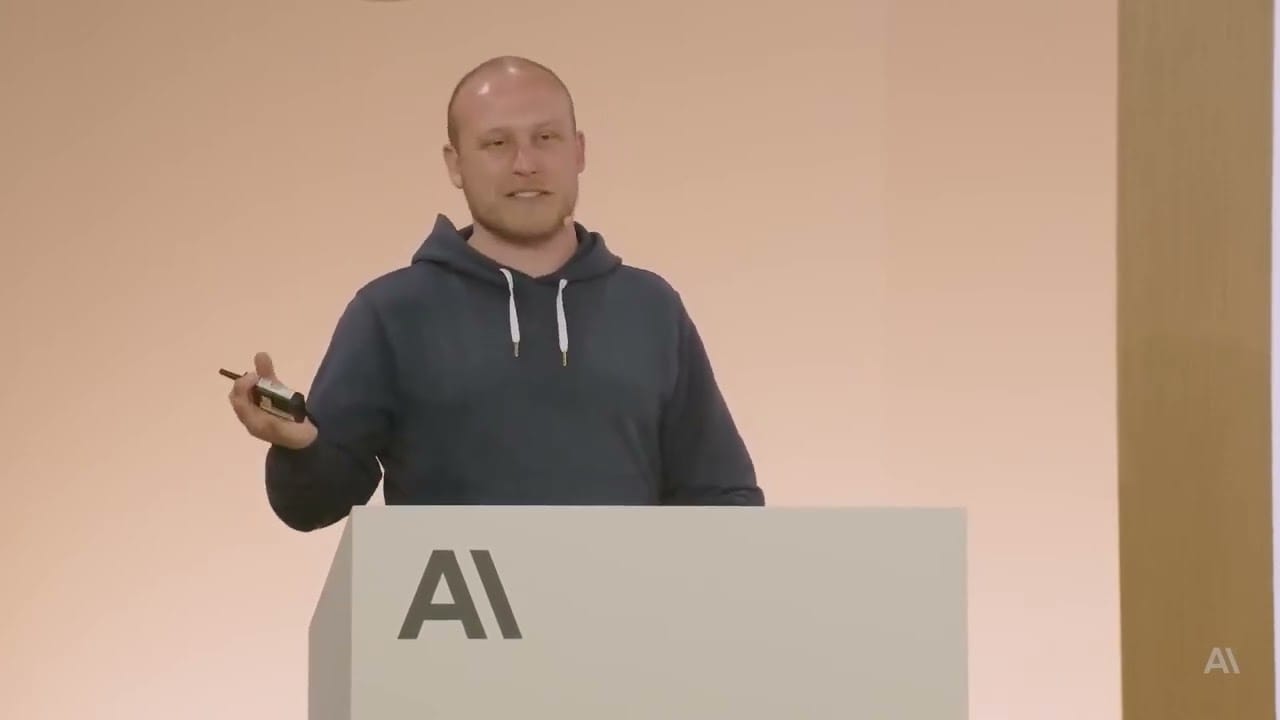
Original source: Solomon Alfred
With: Boris Cherny
This video from Solomon Alfred covered a lot of ground. Streamed.News selected 8 key moments and summarises them here. Everything below links directly to the timestamp in the original video.
Mastering a few key bindings can dramatically speed up your workflow. Here are the essential shortcuts for interacting with Claude Code without leaving the keyboard.
Claude Code Offers Advanced Terminal Shortcuts for Faster Development
To accelerate interaction within the terminal, Claude Code incorporates several key bindings for power users. Pressing Shift+Tab activates an auto-accept mode for code edits, while the '!' key drops the user into a bash shell to run a command directly. The '#' key allows a user to instruct the AI, which the speaker calls Claude, to remember a piece of information, automatically adding it to the Claude.md context file. Other shortcuts include '@' to mention files and folders, Escape to safely stop any ongoing action, and Control+R to view the full context being sent to the model.
These shortcuts are designed to create a more fluid, keyboard-driven workflow that aligns with the efficiency expected by experienced developers. By moving beyond simple conversational prompts, these bindings integrate the AI more deeply into the command-line environment. This allows users to guide, correct, and provide context to the agent without breaking their flow, making the interaction feel less like a chat and more like a direct extension of their development process.
"Anytime you want Claude to remember something, so for example, if it's not using a tool correctly and you want it to use it correctly from then on, just type the pound sign and then tell it what to remember and it'll remember it. It'll incorporate it into Claude MD automatically."
Claude Code Achieves Near-Perfect Results Through Iterative Feedback Loops
Claude Code can achieve near-perfect results on complex tasks by using tools that provide a feedback loop, allowing it to iterate on its own work. When given a way to check its progress, such as unit tests for code or screenshot utilities like Puppeteer for web UIs, the AI can operate in a cycle of generating, testing, and refining. For example, if tasked with building a user interface from a design mock, it can take a screenshot of its current build, compare it to the target image, and autonomously make corrections over two or three iterations.
The trick is to give it some sort of tool for feedback. This iterative capability is significant because it moves the AI beyond single-shot code generation and into a more robust engineering workflow that mimics how human developers operate. This process results in a much higher quality final product and enables the AI to tackle more sophisticated, multi-step projects with greater accuracy and autonomy.
"The trick is give it some sort of tool that it can use for feedback to check its work, and then based on that, it will iterate by itself, and you're going to get a much better result."
Engineers Can Improve Claude Code's Decisions Using `Claude.md` Context Files
To improve the performance of Claude Code, Boris Cherny explains that the more context, the smarter the decisions will be. The simplest way to provide this context is by creating a special file named Claude.md in the root of a project directory. This markdown file should contain essential information that an engineer would need to work in the codebase, such as common bash commands, architectural decisions, and pointers to important files. This file is automatically read at the start of every session, giving the AI a baseline understanding of the project.
This Claude.md file should be kept relatively concise to avoid using too much of the context window and checked into source control so that the entire team can benefit from a shared set of instructions. This practice is crucial for helping the AI make better-informed decisions that are aligned with the project's specific conventions and architecture. For personal notes or commands not intended for the team, a local, untracked Claude.md file can also be used.
"The more context, the smarter the decisions will be because as an engineer working in a code base, you have a ton of context in your head... there's different ways to give this to Claude."
Claude Code Integrates with Custom Team Tools for Enhanced Automation
For more advanced usage, Claude Code can be taught to use a team's existing, custom-built tools, which is where the system starts to really shine. It can learn to operate both simple bash scripts and more complex MCP tools. A developer can instruct the AI on how a specific command-line interface works, for example, by telling it to use the --help flag to understand its functionality. This allows the AI to leverage the same specialized utilities that the human team relies on.
This capability is extremely powerful because it allows Claude Code to adapt to a project's established workflows. To ensure this knowledge persists across sessions, instructions for these custom tools can be saved in the Claude.md context file. By doing so, the AI can remember and utilize a team's entire toolchain on any new codebase, acting as a fully integrated assistant that operates on the user's behalf within their specific development environment.
"This is extremely powerful cuz when you start to use code on a new code base, you can just give it all of your tools, all of the tools your team already uses for this code base, and Claude Code can use it on your behalf."
Claude Code Enables Hierarchical Configuration for Enterprise-Scale AI Management
Advanced users can control Claude Code's behavior through a hierarchical configuration system that scales from individual projects to an entire enterprise. Settings can be applied at three levels: project-specific configurations within a Git repository, global configurations that apply to a user across all their projects, and enterprise policies that are rolled out automatically to every employee. This structure applies to slash commands, permissions, and MCP servers.
This tiered approach offers granular control over both security and convenience. For instance, an enterprise can use it to automatically approve the execution of safe, commonly used bash commands for all employees, streamlining their workflow. Conversely, it can be used to block dangerous commands or prevent access to certain URLs, with policies that employees cannot override. This allows organizations to safely deploy and manage AI tools at scale, enforcing security standards while unblocking developer productivity.
"You can also use this to block commands. So for example, let's say there's a URL that should never be fetched, just add it to this config, and that'll make it so an employee cannot override it."
Claude Code SDK Turns AI Assistant into a 'Super Intelligent Unix Utility'
The Claude Code SDK, accessible through the -p flag in the command-line interface, allows developers to integrate the AI's intelligence into their own scripts and applications. By passing a prompt and specifying which tools are allowed, users can receive structured output in JSON or streaming JSON format. This enables programmatic access to the same core engine that powers the interactive Claude Code experience.
This functionality transforms the AI from a conversational assistant into what Boris Cherny calls a "super intelligent Unix utility." It is frequently used at Anthropic for automating tasks in continuous integration (CI) pipelines and for incident response. Because it can be integrated into shell scripts and have data piped into and out of it, the SDK serves as a programmable building block for creating sophisticated, automated workflows.
"This is awesome for for building on. We use this in CI all the time. We use this for incident response. We use this in all sorts of pipelines. So really convenient. Just think of it as like a Unix utility."
Claude Code Analyzes Git History to Answer Complex Questions About Code Evolution
Claude Code is capable of answering deep, contextual questions about a codebase by going beyond simple text searches and analyzing its history. When asked a question like "Why does this function have 15 arguments?" or "How do I instantiate this class?", the tool will not only look for usage examples but will also investigate the project's Git history to understand the code's evolution.
This ability to synthesize information from Git history is particularly powerful. The AI can trace how arguments were introduced over time, who introduced them, and what business or technical problems the associated commits were addressing. According to Boris Cherny, this emergent capability comes directly from the intelligence of the underlying model, which knows how to use Git to find answers without being explicitly prompted with step-by-step instructions.
"Cloud Code can look through Git history, and then it'll look to figure out how did these arguments get introduced and who introduced them and what was the situation? And you don't have to tell it that in all this detail. You just ask it."
Planning Before Coding: A Key Strategy to Improve AI-Generated Code
A highly recommended strategy for improving the output of AI-generated code is to ask Claude Code to first brainstorm or create a plan before writing anything. Instead of immediately asking it to implement a large, complex feature, a user should prompt it to outline its approach and ask for approval. This ensures the AI's proposed solution aligns with the user's expectations.
This "think first" approach is the easiest way to get the desired result, preventing scenarios where the AI builds something that is technically functional but not what the user actually wanted. This saves significant time that would otherwise be spent on rework. Importantly, this planning mode doesn't require any special commands or flags; a user simply has to ask in plain language, such as, "Before you write code, make a plan."
"The easiest way to get the result you want is ask it to think first. So, brainstorm ideas, make a plan, run it by me, ask for approval before you write code."
Also mentioned in this video
- Claude Code is introduced as a new, fully agentic AI assistant designed for… (1:11)
- Claude Code is described as a general-purpose power tool that doesn't guide… (2:12)
- Recommended initial setup steps for Claude Code include running 'terminal… (2:42)
- The most recommended starting point for Claude Code is codebase Q&A, allowing… (3:59)
- Weekly contributions from Git logs, streamlining personal reporting. (6:37)
- For new users and teams, starting with codebase Q&A is recommended to teach… (7:06)
- After gaining comfort with Q&A, users can transition to editing code,… (7:37)
- Claude Code can interpret a simple prompt like "commit, push, PR" to… (9:10)
- The next steps for users are to teach Claude Code their specific tools and… (11:46)
- Claude Code automatically pulls in `Claude.md` files from nested child… (13:29)
- Beyond `Claude.md`, context can be pulled in using `/` commands from… (14:03)
- Tuning Claude Code's context, considering its purpose (e.g., pulling in every… (15:03)
- For those unsure how to begin with Claude Code's extensive context management… (16:40)
- Claude Code provides tools like `/memory` to view and edit active memory files,… (17:20)
- Configuring shared resources like `Claude.md` and MCP servers once allows an… (17:51)
- The piping functionality of the Claude Code SDK enables powerful integrations… (21:45)
- Advanced Claude Code users often run multiple sessions in parallel, leveraging… (22:23)
- One of the hardest parts of building Claude Code was safely managing bash… (23:46)
- Boris confirms Claude Code is fully multimodal, allowing users to… (24:50)
- Claude Code was built as a CLI tool rather than an IDE due to the diverse range… (25:35)
- Claude Code is extensively used by both engineers and researchers at Anthropic… (26:29)
Summarised from Solomon Alfred · 27:52. All credit belongs to the original creators. Streamed.News summarises publicly available video content.